
Custom roles and permissions
Roles and permissions that fit each job
Group permissions into a role named after the job, such as sales consultant or accounts, and give it to anyone on the team. Any change to the role reaches everyone who holds it.
Roles named after the jobs in your company
Create a role for each job and decide what it opens. Accounts, for example, can open the balance and invoices without reaching customer conversations.
Each role reaches its channels and sees its own conversations
Choose the channels each role can reach and what it can do there: send messages, close conversations, and make and take calls. Then set whether it sees every conversation on the channel or only those assigned to it.
- People in a role can’t reach a channel you haven’t switched on for it
- Assigned to them only works on channels with conversation privacy switched on
One role gives an employee every permission they need
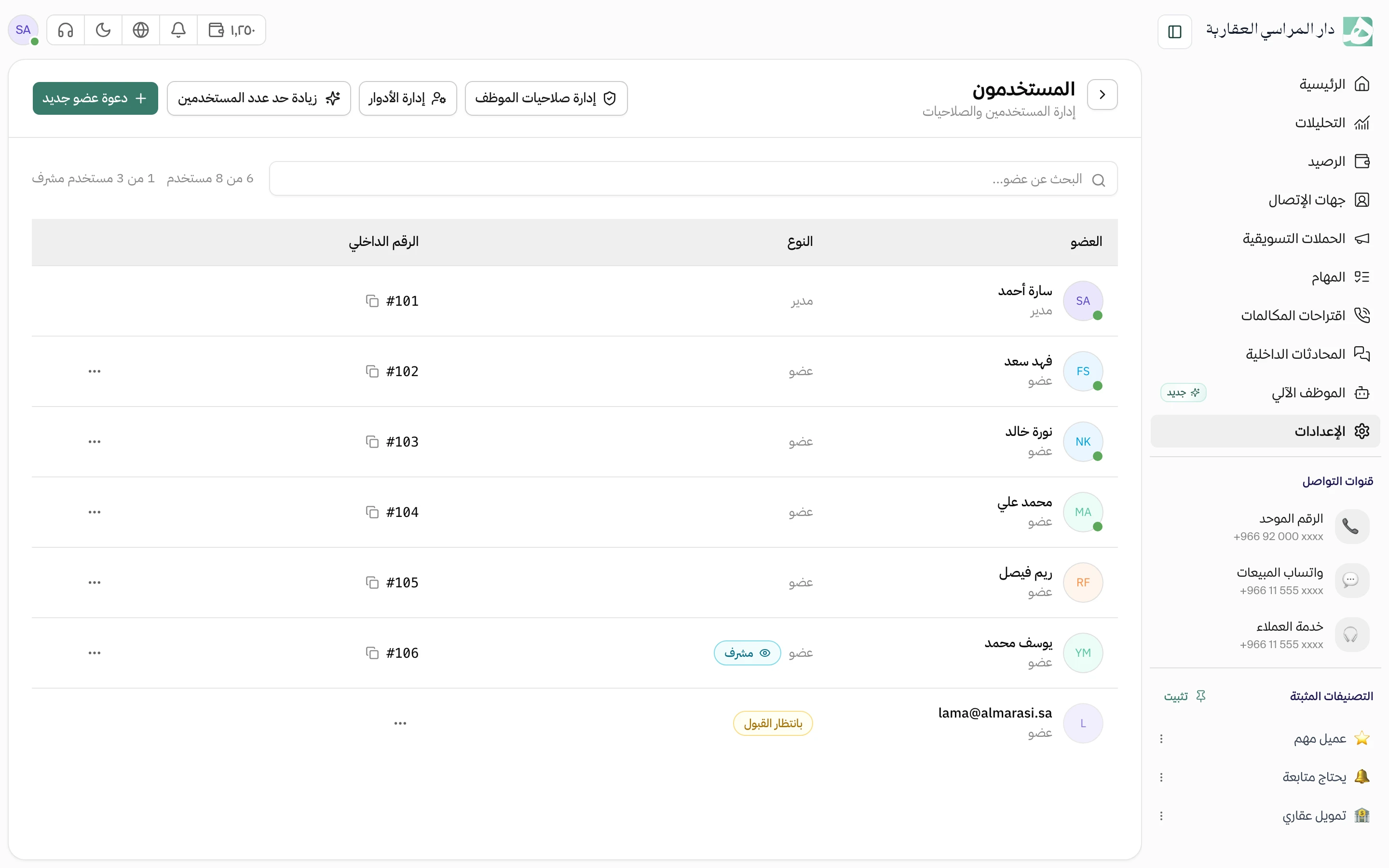
Instead of ticking each employee’s permissions one by one, give them the role and they get everything in it. Give the same role to several employees at once, or to the whole team.
Open any employee’s permissions and see where they came from
For each employee, see their permissions and which role granted each one, so you know why they can reach a given page. Give one employee an extra permission on top of their role, and the role stays as it is for everyone else.
Questions about this feature
Can an employee hold more than one role?
Yes, and the permissions from their roles add up. If two roles open the same channel and one gives wider access, the wider access applies.
What happens if I edit or delete a role that has employees in it?
An edit applies to everyone who holds the role, and deleting it removes the access it gave them. Before any reduction, Hatif asks you to confirm and says how many members are affected, because it may unassign their conversations and tasks.
Who can create and edit roles?
The account owner, and any member you give the manage member permissions permission.
Try Hatif with your team
Start with your unified number and have your team answer from one app.