
Call suggestions
Call suggestions that fill in customer details
After every call, Hatif picks out the caller’s name, their company, what they want and what should happen next. It arrives as a suggestion, and nothing is saved to the contact until you accept it.
Review and edit the suggestion before it’s saved
Your team no longer types up customer details after every call. They review what Hatif suggests, edit what they want, and save it in one click or dismiss it.
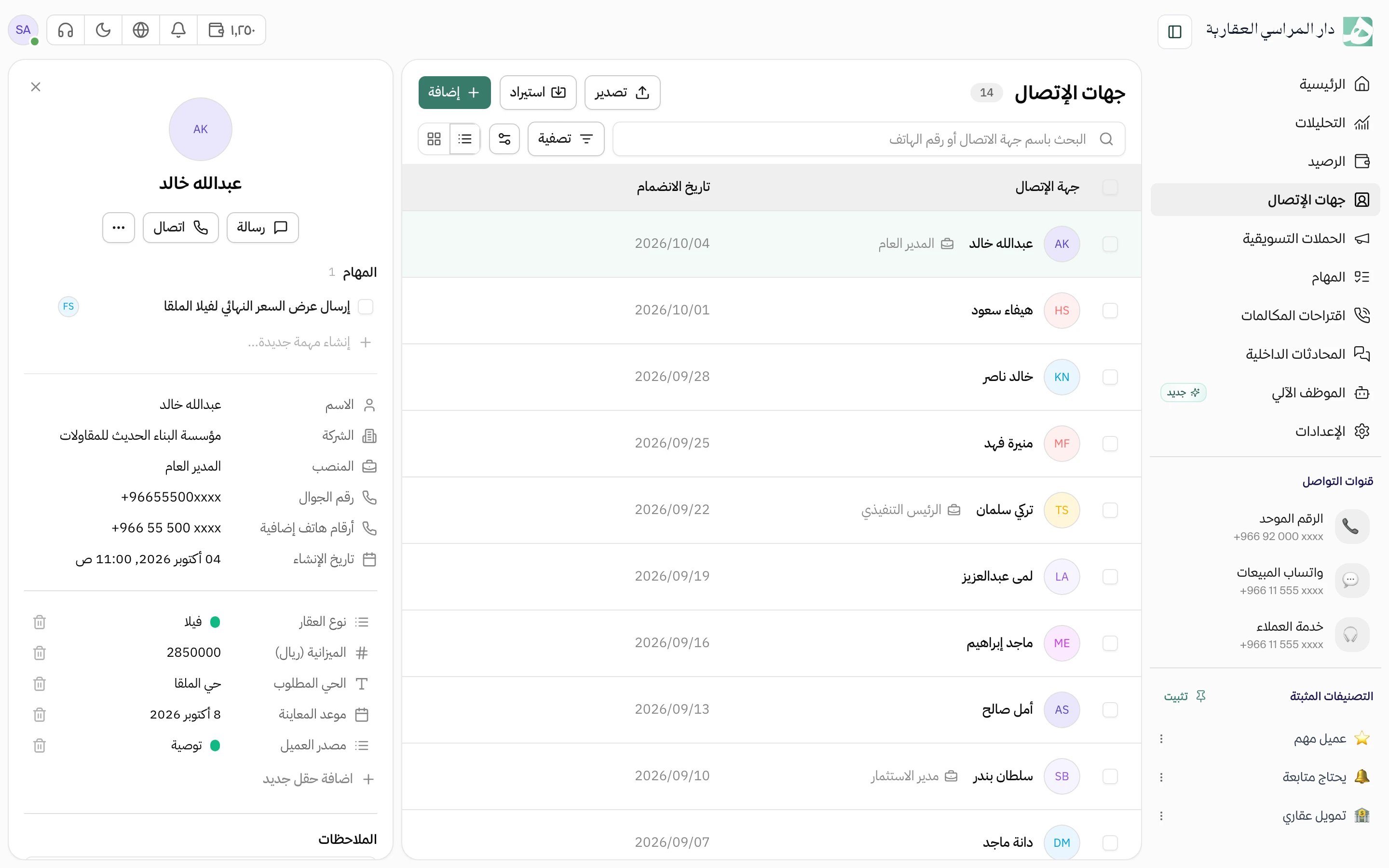
- It fills in your custom fields, such as property type
- It writes a note on what the caller asked for
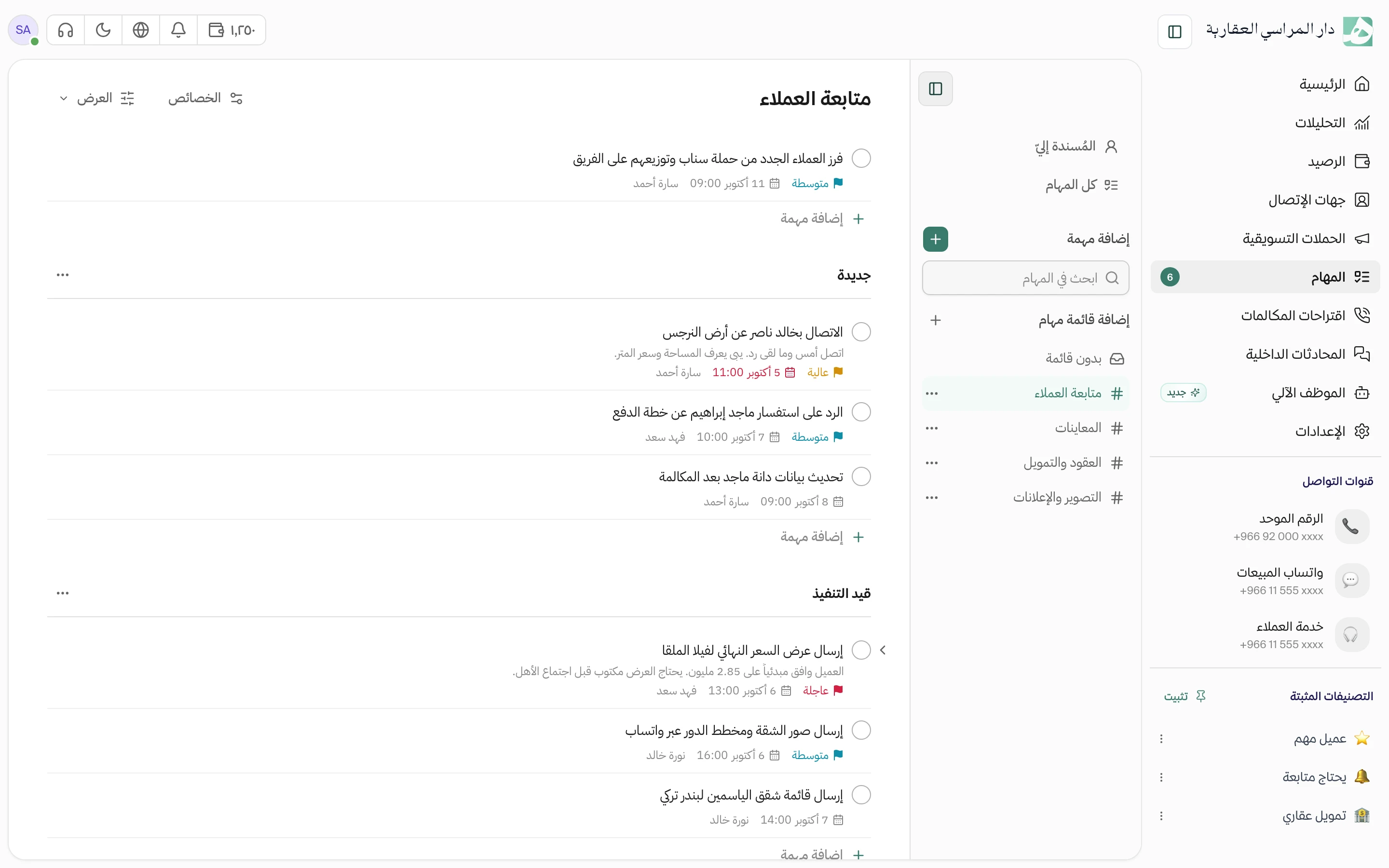
- It suggests a follow-up task with a due date
Every suggestion has a record of what was accepted and by whom
Go back to any suggestion to see what was saved from it, from which call, and who on your team handled it. Anything saved without review is marked with Hatif’s name.
You decide when it suggests, and when it saves without asking
Have suggestions come after every call, or only after the first call with a customer. If you want details saved straight away, turn on auto-apply, and the suggestions stay available for you to go back to whenever you like.
- A third mode: a full suggestion on the first call, and only a note on later ones
- Turn off follow-up task suggestions on their own if you don’t need them
Questions about this feature
Do customer details change on their own?
No. A suggestion is only saved if you accept it. If you turn on auto-apply in settings, details are saved without review, and the suggestions stay on the page for you to check later.
What exactly does Hatif suggest?
The caller’s name, company, job title and email, tags, values for the custom fields you’ve defined in contacts, a note about the call, and a follow-up task with a due date if the call ended with something to do.
What if the customer is saved under a different name?
Hatif shows you the current name and the suggested name side by side, and you decide. You can edit the name or clear it and save the rest of the details.
Related features
All features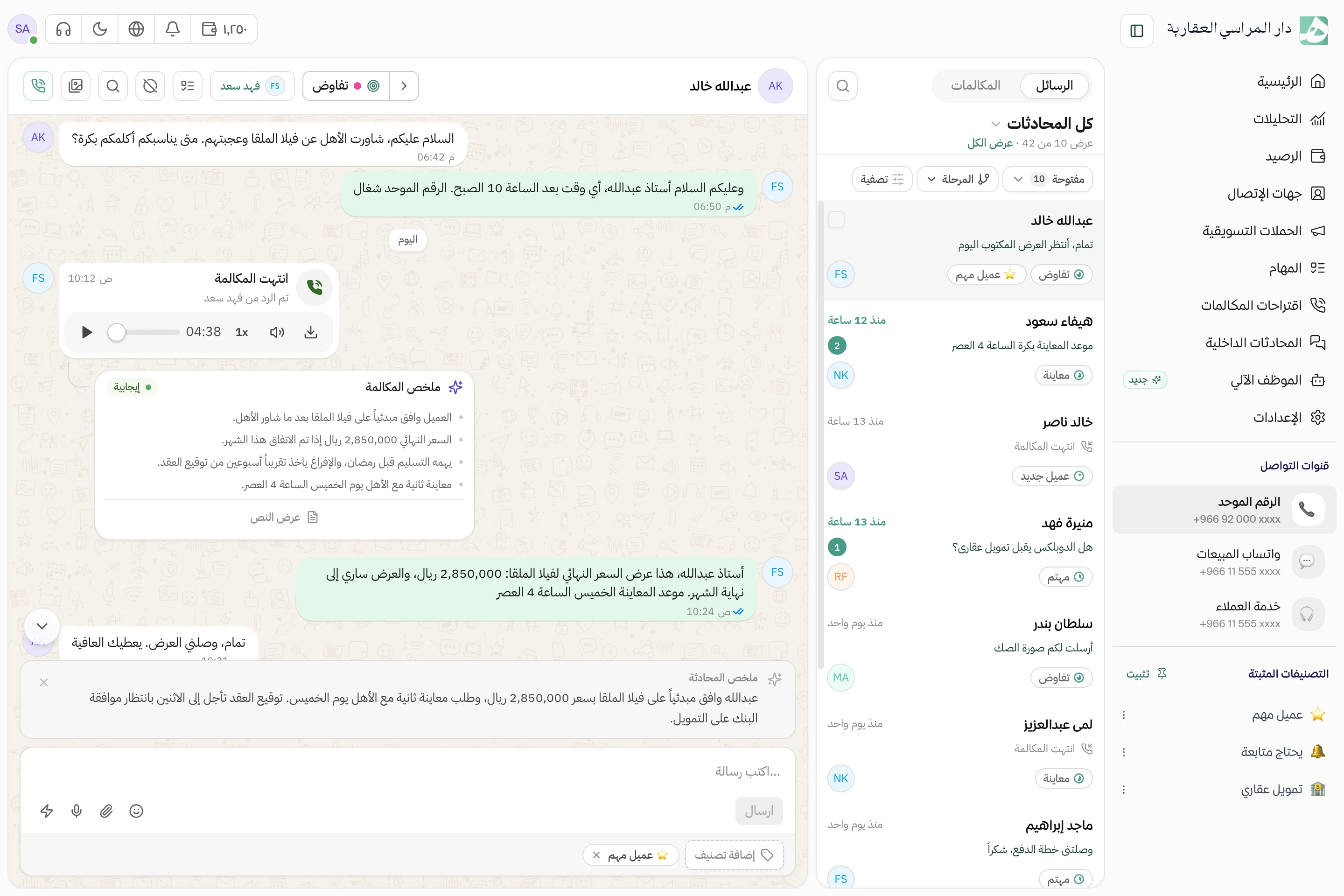
Try Hatif with your team
Start with your unified number and have your team answer from one app.