
Response-time targets (SLA)
Response-time targets (SLA) your team can meet
Set the reply time you promise customers, such as ten minutes for a first reply, and Hatif tracks how long each customer waited. Day by day, you see how many replies missed the target and the average delay.
Set the reply time once and use it on every channel
Set the target once, such as first reply within 10 minutes, and apply it to any conversation on any channel. The whole team works to the same promise.
- Create several targets, each with its own name and time
- Pause a target whenever you like, and timers already running carry on
The timer pauses after hours, and reminders arrive in time
A message that comes in after closing doesn’t burn the target overnight, because the timer can pause outside working hours. Whoever owns the conversation gets up to three reminders before time runs out, while there’s still time to reply.
Conversations close to their deadline stand out in the inbox
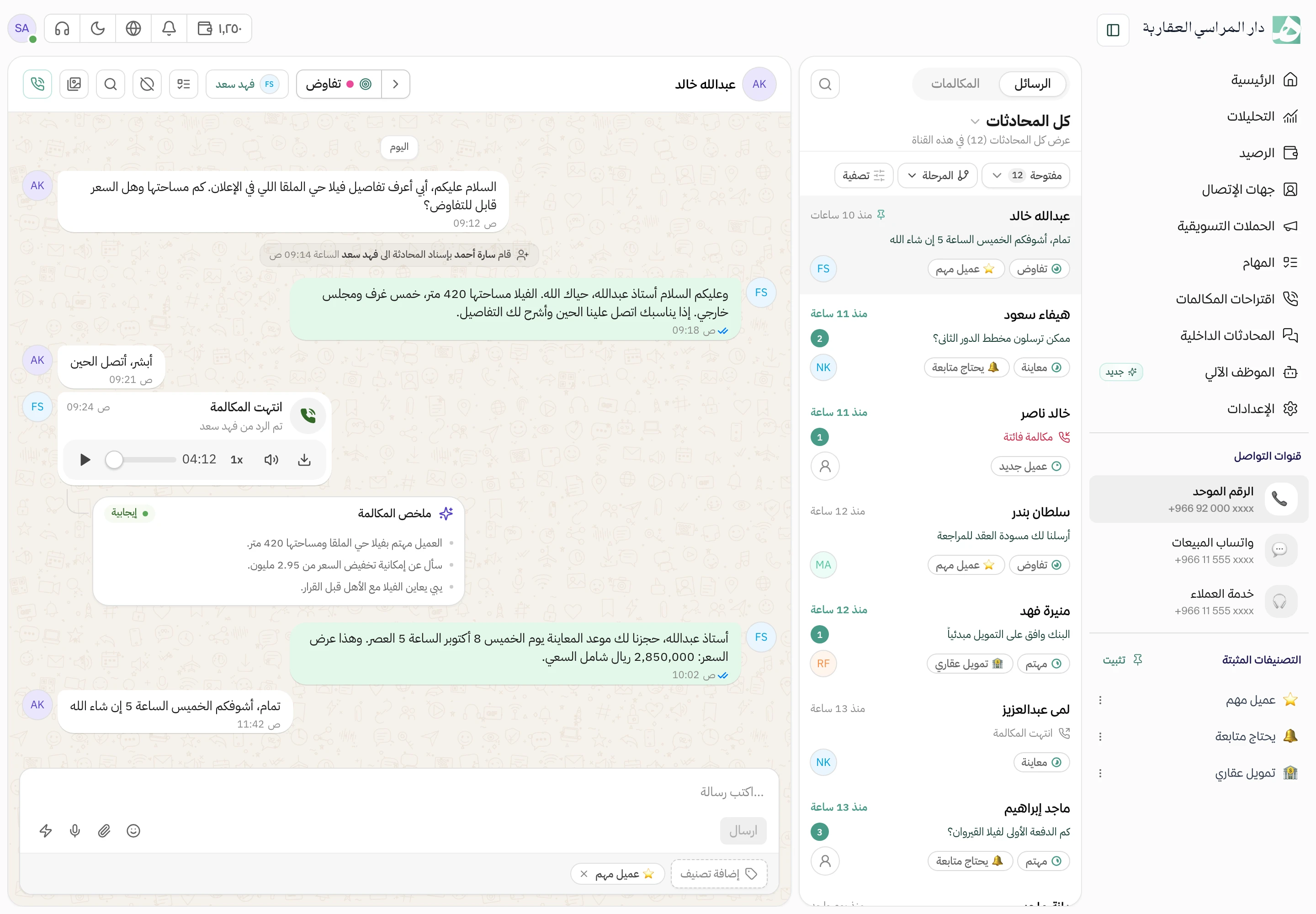
Employees see in the inbox which conversations are close to their deadline and how long is left, and which have passed it and by how much. They start with what can’t wait.
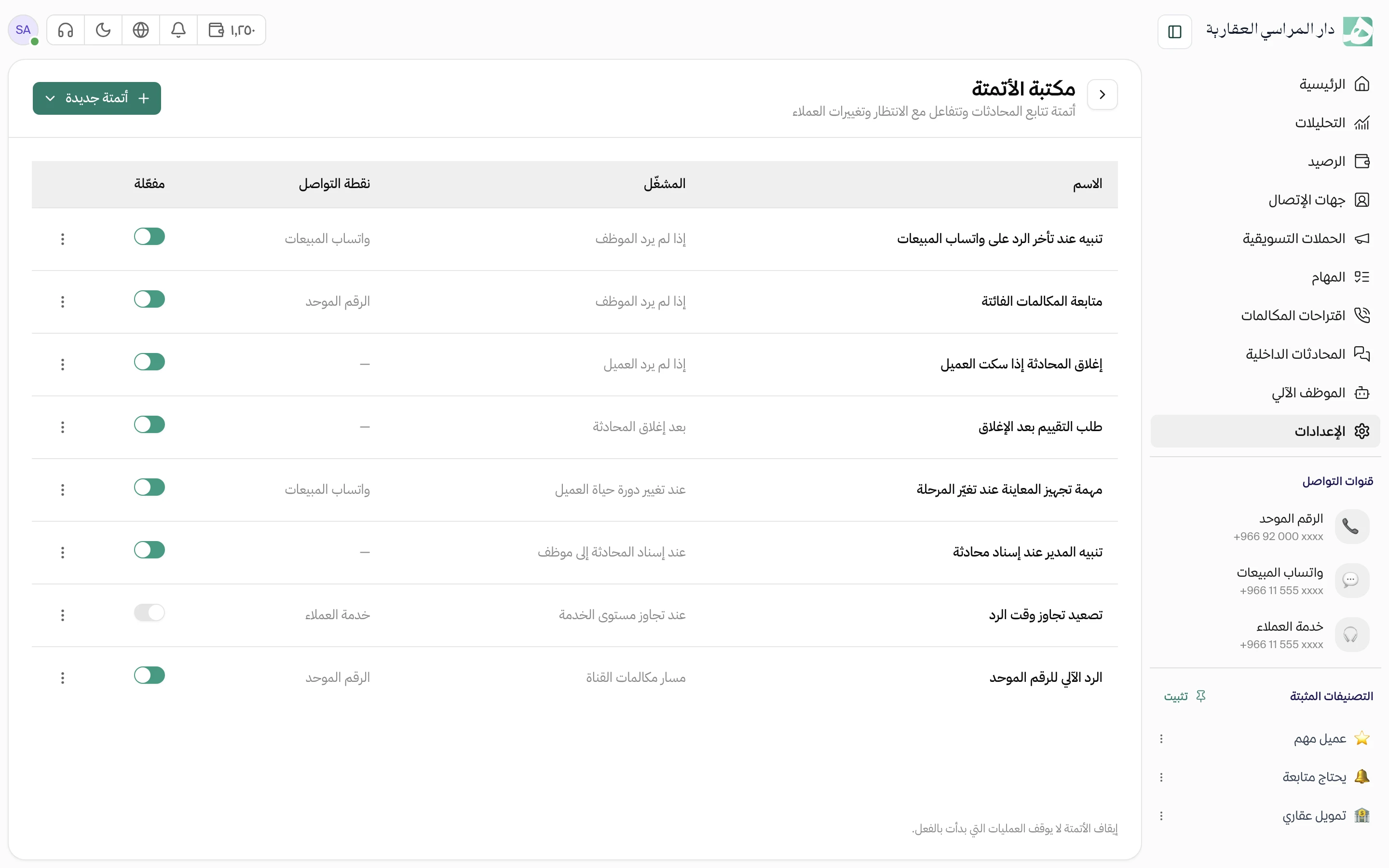
- Applied automatically by an automation, or by hand to a single conversation
- A breach is recorded in the conversation with its time
A list of every late reply, and who owned it
For each late reply, see the customer, who owned the conversation and how late it was. Conversations still waiting for a reply stand out, so you can get to them.
- Narrow the report to an employee, a channel or a time period
- Open the conversation itself from the report
Questions about this feature
How does a target get applied to a conversation?
Automatically through an automation on the conversations you choose, or by hand from the conversation itself. Change or remove it whenever you like.
What happens when the reply time passes?
The breach is recorded in the conversation and counted in the report. You can also build an automation that runs on a breach, such as moving the conversation back to unassigned so a colleague can take it.
Who can create and apply targets?
Anyone with the manage SLAs permission. Applying a target to a conversation and removing it are two further permissions, set for each channel.
Try Hatif with your team
Start with your unified number and have your team answer from one app.